Question 91 · 301 in bank
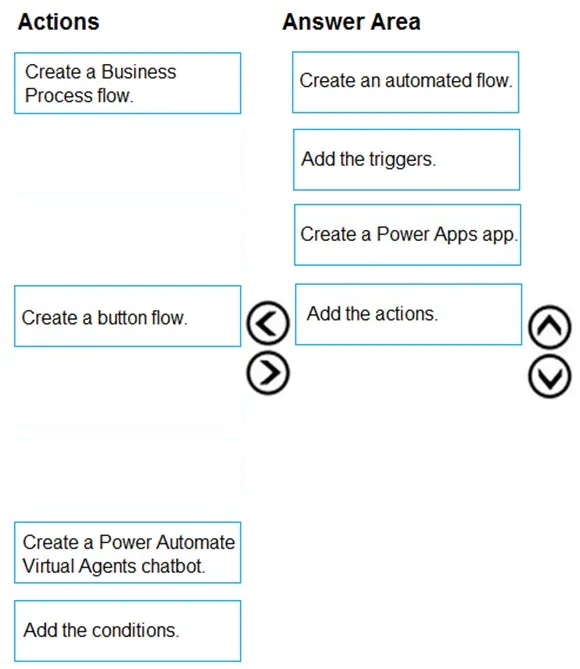
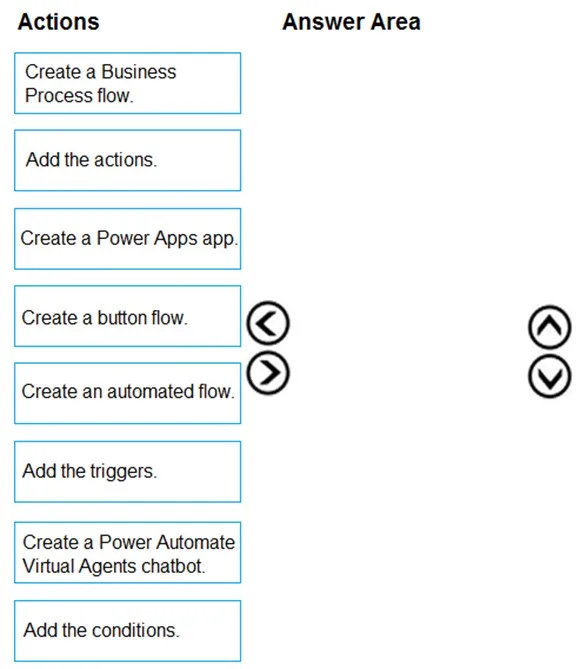
DRAG DROP - A company is using the Power Platform. The company would like to create a project health check solution. For each active project, team members will use the tool to select one of the following options: ✑ Things are going well. ✑ I need help. If things are going will, an email is sent to the manager letting them know that no intervention is needed. If the team member needs help, a mobile notification is sent to the manager letting them know the team needs assistance. You need to create the solution. Which four actions should you perform in sequence? To answer, move the appropriate actions from the list of actions to the answer area and arrange them in the correct order. Select and Place:
This is an interactive task on the real exam — a drag-and-drop, hotspot or ordering question. There is nothing to select here, so the answer is shown below for reference.
Show the answer figure
Answer: See figure below
Explanation
Step 1: Create an automated flow. You can use Power Automate to create logic that performs one or more tasks when an event occurs in a canvas app. For example, configure a button so that, when a user selects it, an item is created in a list created using Microsoft Lists, an email or meeting request is sent, a file is added to the cloud, or all of these. You can configure any control in the app to start the flow, which continues to run even if you close Power Apps. Step 2: Add the triggers. Create a flow - In this section, you'll create a flow using Power Automate that creates an item in a list using the input value for the list column from an app created using Power Apps. You'll create the app that uses this flow in the next section. ✑ Sign in to Power Apps. ✑ On the left-pane, select Flows. ✑ Select + New flow > Instant cloud flow. ✑ Enter flow name, such as FlowInApp. ✑ Under Choose how to trigger this flow, select Power Apps. ✑ Etc. Step 3: Create a Power Apps app. Add a flow to an app - In this section, you'll learn about creating an app using Power Apps that uses the flow created in the earlier section. The app uses text entered in a text box when the button is selected to trigger the flow to create an item in the selected list. 1. Create a blank canvas app with a name such as AppWithFlow. 2. Select + (Insert) on the left-pane. 3. Select Text input control. 4. Select Button control. 5. On the canvas, move the button control below the text input control. 6. Design the app. 7. Select Action menu at the top, and then select Power Automate. 8. Etc. Step 4: Add the actions. Reference: https://docs.microsoft.com/en-us/power-apps/maker/canvas-apps/using-logic-flows
Source: Adapted from community discussion — AZ_Guru_Wannabe